· 8 min read
How I Dev
On this page
Good tools disappear - you stop noticing the tool and just work.
The moment I learned Vim motions, I couldn’t go back. Not just in my editor - everywhere. My terminal, my window manager, even my note-taking app. This post is a walkthrough of my development setup.
Everything here is built on three principles: speed (every keystroke saved compounds), reducing friction (tools should get out of your way), and honestly - tinkering is fun.
The Editor
I use Cursor as my primary editor with the Neovim extension. I get modal editing, my keybindings, all the Vim muscle memory - plus AI assistance and the VS Code ecosystem when I need it.
I use Gruvbox as my theme everywhere - editor, terminal, tmux. Consistency helps. For fonts, JetBrains Mono Nerd Font. Nerd Fonts are regular programming fonts patched with icons - file types, git symbols, all those glyphs you see in terminals and editors.
The clever bit is in my Neovim config init.lua :
if vim.g.vscode then
  require("code")
  return
end

require("config.lazy")
When Neovim detects it’s running inside VS Code/Cursor, it loads a different, leaner config (code.lua) that focuses only on keybindings and Vim-specific mappings. When I’m in actual terminal Neovim, it loads the full configuration with LSP, plugins, everything.
This means I can seamlessly switch between Cursor for heavy project work and terminal Neovim for quick edits or when I’m SSH’d into a server, and my fingers know what to do in both. The Vim motions are the constant. The editor is just the container.
Keyboard Remapping
Once you’re using Vim, certain keys become way more important. Escape, for one - you’re hitting it constantly to switch modes. And reaching for that top-left corner gets old fast.
That’s where Karabiner-Elements comes in. I’ve remapped keys to be way more useful:
Caps Lock:
- Tap = Escape (essential for Vim)
- Hold = Control (way easier to reach than the actual Ctrl key)
J + K or D + F (held together) = Hyper key (Shift+Cmd+Ctrl+Option)
The Hyper key gives me a dedicated modifier for window management. Instead of reaching for multiple keys, I hold down J+K or D+F on the home row. All my Aerospace shortcuts use Hyper, so I never move my hands from home row.
Window Management: Everything Has a Home
I use Aerospace for tiling and workspace management. Every app type gets a dedicated workspace:
- Workspace 1 = Browser (Chrome for work, Zen for personal)
- Workspace 2 = Editor (Cursor)
- Workspace 3 = Notes (Obsidian)
- Workspace T = Terminal (Ghostty)
This isn’t just about organization, it’s about muscle memory. I don’t think about where my terminal is. I hit Hyper + T and I’m there. Editor? Hyper + 2. Always. No hunting through windows.
The Terminal: Where Vim Led Me
Once you go down the Vim path, the terminal starts calling to you. That’s where ThePrimeagen’s influence really kicked in - his videos on tmux, terminal workflows, and dotfile management showed me there was an entire world of optimization beyond just the editor.
Ghostty is my terminal of choice - fast, minimal, and just works.
Shell Setup
I use Zsh with Zinit for plugin management. The essentials:
zsh-syntax-highlighting- colors as you typezsh-autosuggestions- ghost text completion from historyfzf-tab- fuzzy search in tab completion- Starship for a fast, informative prompt
- mise for managing runtime versions (Node, Go) and CLI tools
I have a shell hook that auto-adds node_modules/.bin to PATH when I cd into a project - so I can just type prettier instead of npx prettier. Check the add_node_modules_to_path function in my zsh config.
CLI Tools
I’ve replaced most standard Unix commands with modern alternatives. Faster, better defaults, nicer to use.
bat - cat with syntax highlighting and line numbers. I never use cat anymore.
eza - ls replacement with icons, git status integration, and better formatting.
fd - find with a sane syntax. fd config instead of find . -name "*config*".
rg (ripgrep) - grep but fast. Respects .gitignore by default.
fzf - fuzzy finder. Pipe anything into it, search interactively. Changes how you work.
zoxide - smarter cd. It learns your most-used directories. Type z proj and you’re in ~/code/my-project.
delta - makes git diffs actually readable with syntax highlighting and side-by-side view.
trash - this one has saved me multiple times. Instead of rm -rf permanently deleting files, trash moves them to macOS Trash. You can recover them. I alias rm to trash now - there’s no reason not to. Permanent deletion should be a deliberate choice, not the default.
Most of these are installed via mise or brew. Check my dotfiles for the aliases.
The Tmux Workflow
Tmux is a terminal multiplexer - it lets you run multiple terminal sessions in one window and keep them running in the background. The real power? Your sessions persist. Close your terminal, quit your editor, sleep your Mac - doesn’t matter. When you come back, your dev servers are still running, your logs are still there, everything exactly as you left it.
If you’re new to tmux and interested, watch this video - it’s the best intro I’ve found.
Every project gets its own tmux session. This is the core of my context-switching strategy.
This simple shell function does everything I need:
function t(){
  local session_name=$(basename "$PWD" | tr '.' '-')

  if ! tmux has-session -t="$session_name" 2>/dev/null; then
    tmux new-session -d -s "$session_name"
  fi

  if [ -z "$TMUX" ]; then
    tmux attach-session -t "$session_name"
  else
    tmux switch-client -t "$session_name"
  fi
}
The magic: I cd into a project directory, type t, and I’m in a tmux session named after that directory. If the session already exists, it attaches to it. If I’m already in tmux, it switches to that session instead.
This means I can have 10 different projects, each with their own terminal state, running servers - and switch between them instantly.
Version Control: I Don’t Use Git Anymore
Well, I still use git repos - but I interact with them through Jujutsu (jj). It’s simpler than git, and you can undo anything. Messed up a rebase? Undo it. Done.
I run jj “colocated” inside git repos - they share the same directory. When I push to GitHub, jj syncs automatically. I mostly use jjui for a visual interface.
If you want to learn more about jj:
- Introduction to Jujutsu VCS - great starting point
- jj init - deep dive essay
- jj Tips and Tricks
- jj Cheat Sheet (PDF)
Raycast
Raycast replaced Spotlight for me. The built-in stuff I use most:
- Clipboard history - search through everything I’ve copied
- Snippets - email templates, common responses
- AI chat - connected my own Gemini API key for quick questions
- “Improve Writing” - a Raycast AI command that rewrites selected text. Lifesaver for Slack messages and emails
But the real power is custom scripts. You can write them in bash, python, applescript - whatever works. Raycast just runs them.
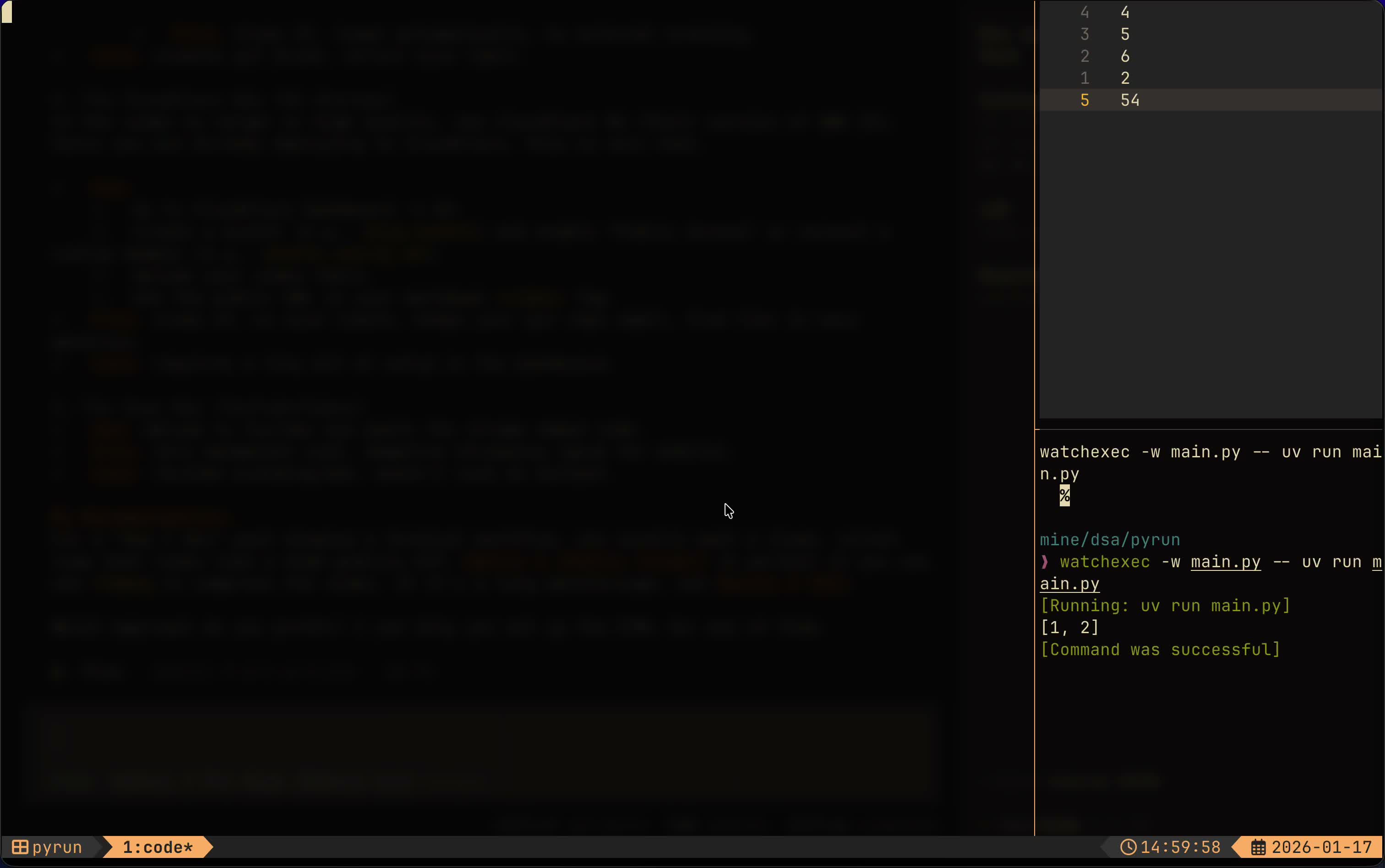
One I love is PyRun - a single command that opens a full DSA practice environment: a tmux session with three panes - nvim with my code, nvim with the input file, and a watcher that auto-runs the code on every save. No setup, just start solving.
Browsers
Chrome for work, Zen Browser for personal. Keeping them separate helps maintain that mental boundary between work and not-work.
Notes
Obsidian is where my thoughts go - dev notes, daily logs, project planning. Nothing fancy, just simple markdown files with Vim mode enabled. No complex second brain system (yet), just files linked together that I can search when I need them.
Keeping It All Together: Dotfiles
All of this lives in a git repository managed with GNU Stow .
The structure is simple - each tool gets its own directory, mirroring the actual config location:
.dotfiles/
├── nvim/.config/nvim/
├── tmux/.config/tmux/
├── zsh/.zshrc
├── aerospace/.config/aerospace/
└── ...
Running stow nvim creates a symlink from ~/.config/nvim to the dotfiles version. New machine? Clone the repo, run a few stow commands, and I’m back in business.
This also means every config change is automatically tracked in git. I can see what I changed, when, and roll back if I break something.
Wrapping Up
That’s my setup. It’s always evolving - I’m constantly tweaking things here and there. If you want to dig deeper, everything is in my dotfiles repo . Steal what’s useful, ignore what isn’t.